

CORZ Client
Purpose-built for servers like DonutSMP, Auto Schematic Builder and other features like a Mace Bot.
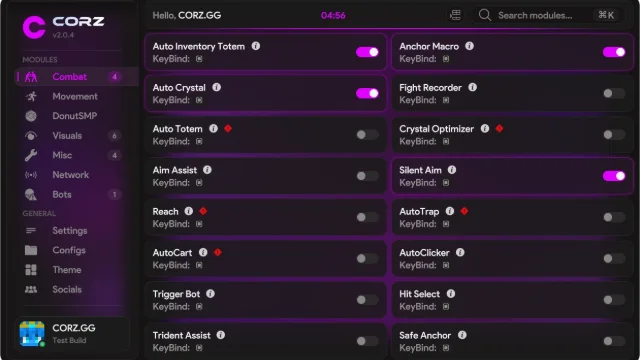
About CORZ Client
Corz Client is a Minecraft utility client designed for players who want powerful automation, useful features, and a clean, lightweight experience. Built with performance and usability in mind, Corz aims to make everyday gameplay easier while keeping everything simple and accessible.
Its standout feature is the Auto Schematic Builder, which allows players to import schematics and automatically place every block, making it possible to construct large and complex builds in minutes rather than hours.
Corz also offers a collection of utility modules, continuously maintained updates, and a modern interface designed to keep everything easily accessible.
Key Features
Auto Schematic Builder – Automatically builds structures from imported schematics with precise block placement.
Utility Modules – A collection of useful tools and automation features.
Lightweight Performance – Designed to minimise lag and keep gameplay smooth.
Clean Interface – A modern, responsive UI that's easy to navigate.
Regular Updates – Continuously maintained to keep features working with supported game versions.
Community Support – Player feedback helps shape future updates and improvements.
Corz is ideal for Minecraft players who enjoy building, automation, and utility features, particularly those looking to save time on repetitive tasks and get more out of their gameplay.
Features
- Clean click GUI
- Configurable keybinds
- Built-in HUD editor
How to install CORZ Client
6 steps. Takes about 3 minutes.
-
Step 1: Download CORZ Client
Choose the file that matches Minecraft 1.21.11. Only download from the buttons below.
-
Step 2: Install Fabric for Minecraft 1.21.11
CORZ Client runs on the Fabric mod loader. Get the official installer from fabricmc.net/use/installer, run it, pick Minecraft 1.21.11 and press Install.
Already have Fabric for this version? Skip this step.
-
Step 3: Download the required mods
CORZ Client also needs these. Get the version that matches your Minecraft version:
-
Step 4: Open your mods folder
Windows%appdata%\.minecraft\modsPress Win + R, paste this, press Enter.macOS~/Library/Application Support/minecraft/modsIn Finder press Cmd + Shift + G and paste this.Linux~/.minecraft/modsOpen it in your file manager or terminal.If there is no
modsfolder yet, create one with exactly that name. -
Step 5: Move the files into the mods folder
Drag the
.jarfiles you downloaded into themodsfolder. Do not unzip them.Remove older versions of CORZ Client from the folder so they do not clash.
-
Step 6: Launch Minecraft with the Fabric profile
Open the Minecraft Launcher, pick the Fabric profile in the bottom-left dropdown and press Play.
Most clients open their menu with Right Shift. Check the description above if it is different.
Stuck? See the troubleshooting guide.